The pre-assignment for the CUDA 4 Dummies course is to read the ACCESS DETAILS mail (sent Mon, 20 Oct 2025) and answer accordingly if needed..
Please see the two emails that will be sent a few days before the course to all registered participants:
- ACCESS DETAILS - CUDA 4 Dummies, 22-23 October 2025
➠ Zoom link and Survey link
- VSC login - CUDA 4 Dummies, 22-23 October 2025
NOTE, this mail will be sent on Wed, 22 Oct 2025, only to those participants who are present in the Zoom meeting at 09:00 CEST.
➠ Your personal username and password for the course
➠ Your personal ID, the two digits should replace the ## in the username and in the password below
Login with:
username: trainee## ( ## ➠ ID )
password: ...........## (see email)
For this course access to vsc5 will be done via the gui nodes, please install NoMachine (!M) from the NoMachine official website on your local machine prior to the course.
Specific guidelines how to setup and connect during the course are provided below. The general guidelines how to setup and use !M at ASC can be found in the ASC documentation.
- no VPN connection is needed
- all VSC5-associated !M nodes can be used, in particular
- gui3068-007.vsc.ac.at
- gui3068-008.vsc.ac.at
- gui3068-009.vsc.ac.at
- gui3068-010.vsc.ac.at
- gui3068-011.vsc.ac.at
- gui3068-012.vsc.ac.at
- preferred port will be :4000 but if that poses problems :22 can be used as well
- there is a limited number of maximal 10 virtual desktops that can be created on each of the !M nodes, so when reaching this limit just proceed with the next !M node from the above list
- once you have established your !M session (created a virtual desktop) open some terminal and get your gpu node allocated; for the latter you just type inside the just opened terminal
- on the first day
- cp ~trainee01/dummyjob1.sh ./
- sbatch dummyjob1.sh
- squeue --me (to figure out the gpu node that has been allocated)
- ssh <just-figured-out-gpu-node>
- on the second day
- cp ~trainee01/dummyjob2.sh ./
- sbatch dummyjob2.sh
- squeue --me (to figure out the gpu node that has been allocated)
- ssh <just-figured-out-gpu-node>
- on the first day
Below are the old instructions from 2024 to connect via ssh:
At the course please do: cd ~; cp -r ~trainee01/i i cd ~; cp -r ~trainee01/ii ii module load cuda/11.8.0-gcc-9.5.0-ananl33
day2: module purge module load gcc/12.2.0-gcc-8.5.0-7ih4ahb module load cuda/12.9.0-gcc-12.2.0-xznhx43 module load cmake/3.29.1-gcc-12.2.0-yooqtj6
| ! login to vsc5 via !M nodes (the ## has to be replaced by your personal ID , see email) ! copy the exercises of day 1 (only once) ! copy the exercises of day 2 (only once) ! load the cuda module on the compute node. |
export LD_LIBRARY_PATH=$LD_LIBRARY_PATH:/gpfs/opt/sw/cuda-zen/spack-0.19.0/opt/spack/linux-almalinux8-zen/gcc-12.2.0/cuda-12.9.0-xznhx43d6xdwudiuv7xcutpx6ympzybi/lib64
###### Alternative method #######
Login from a terminal window on your Linux or Mac device or Windows Power Shell.
Alternatively, if you are on Windows you can install and use PuTTY (see screenshots).
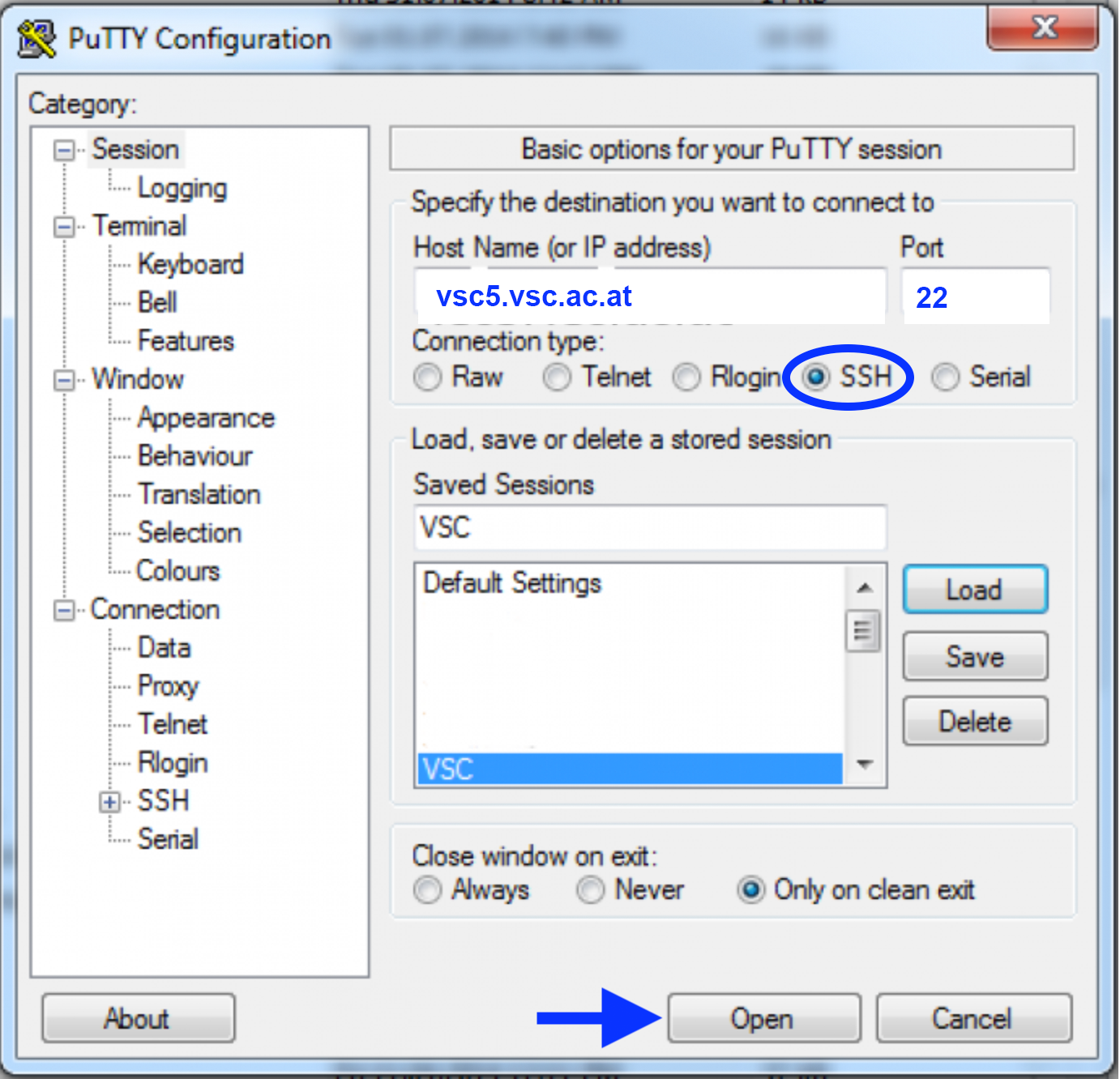
SSH login – if you are in the IP range of an ASC partner university
(either physically OR via a jump host OR via VPN):
ssh trainee##@vsc5.vsc.ac.at
If you use Windows together with PuTTY please enter (see screenshot):
HostName: vsc5.vsc.ac.at
Port: 22
Connection type: SSH
Open --> in terminal - login as: trainee##
You'll be asked for your password:
Note, the password will be invisible when you type it.
After entering your (correct) password, you'll be asked for your OTP:
The OTP is a one-time password sent as an SMS to your mobile phone.
After entering your (correct) OTP you will see a welcome message and a
prompt and you can leave vsc5 by typing:
exit
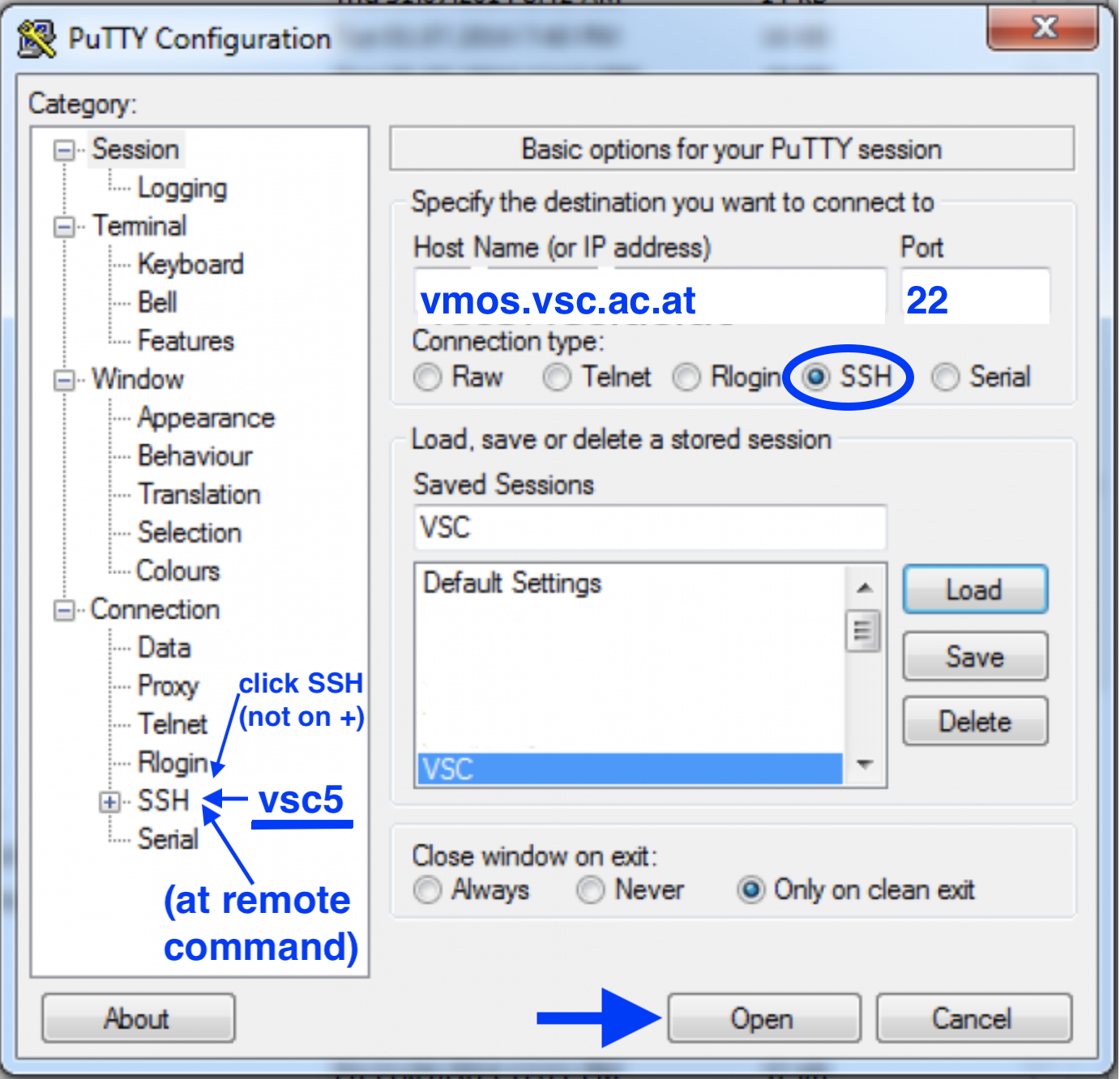
SSH login – if you do not belong to an ASC partner university
(this option works for trainee users only):
ssh -t trainee##@vmos.vsc.ac.at vsc5
If you use Windows together with PuTTY please enter (see screenshot):
HostName: vmos.vsc.ac.at
Port: 22
Connection type: SSH
Left menu --> SSH --> Remote command: vsc5
Open --> in terminal - login as: trainee##
You'll be asked for your password twice (on vmos and on vsc5):
Note, the password will be invisible when you type it.
After entering your (correct) password twice, you'll be asked for your OTP:
The OTP is a one-time password sent as an SMS to your mobile phone.
After entering your (correct) OTP you will see a welcome message and a
prompt and you can leave vsc5 by typing:
exit
Login via your browser, if you can't use ssh (even though ssh would be highly recommended for the CUDA course):
Login with your username and password.
After entering your (correct) password, you'll be asked for your OTP:
The OTP is a one-time password sent as an SMS to your mobile phone.
Before the course:
Please "Logout" in the upper right corner of your browser window, do not hit the red "Start" button before the course starts.
During the course:
Feel free to hit the red "Start" button with the provided default setting.
Once your server is up and running, open a "Terminal" and type these two commands (copy with your mouse):
source .bashrc
export PS1='$ '
(the first command sets up a nice environment, the second shortens the prompt)
At the end of the course please shut down your server properly:
In the upper left corner use File --> Hub Control Panel and then click "Stop my Server".
After that please "Logout" in the upper right corner of your browser window.
With a successful first login you are good to go and enjoy the CUDA course!
Please write an email to training@asc.ac.at if you are experiencing any problems with login or accessing vsc5 or if you need any further assistance (please also include your mobile-phone number with the international dial prefix as this is one of the most likely problems).