The pre-assignment for the ASC-Linux course is to login to vsc5.
We do that to not loose precious time during the course and to make sure that we do have your correct mobile-phone number which is needed for the two-factor authentication enforced with login to all ASC systems.
Please see the two emails that will be sent a few days before the course to all registered participants:
- ACCESS DETAILS - Linux Command Line, 2 March 2026
➠ Zoom link and Survey link
- ASC login - Linux Command Line, 2 March 2026
➠ Your personal username and password for the course
➠ Your personal ID, the two digits, should replace the ## in the username and in the password below
Login with:
username: trainee## ( ## ➠ ID )
password: ...........## (see email)
Login from a terminal window on your Linux or Mac device or Windows Power Shell.
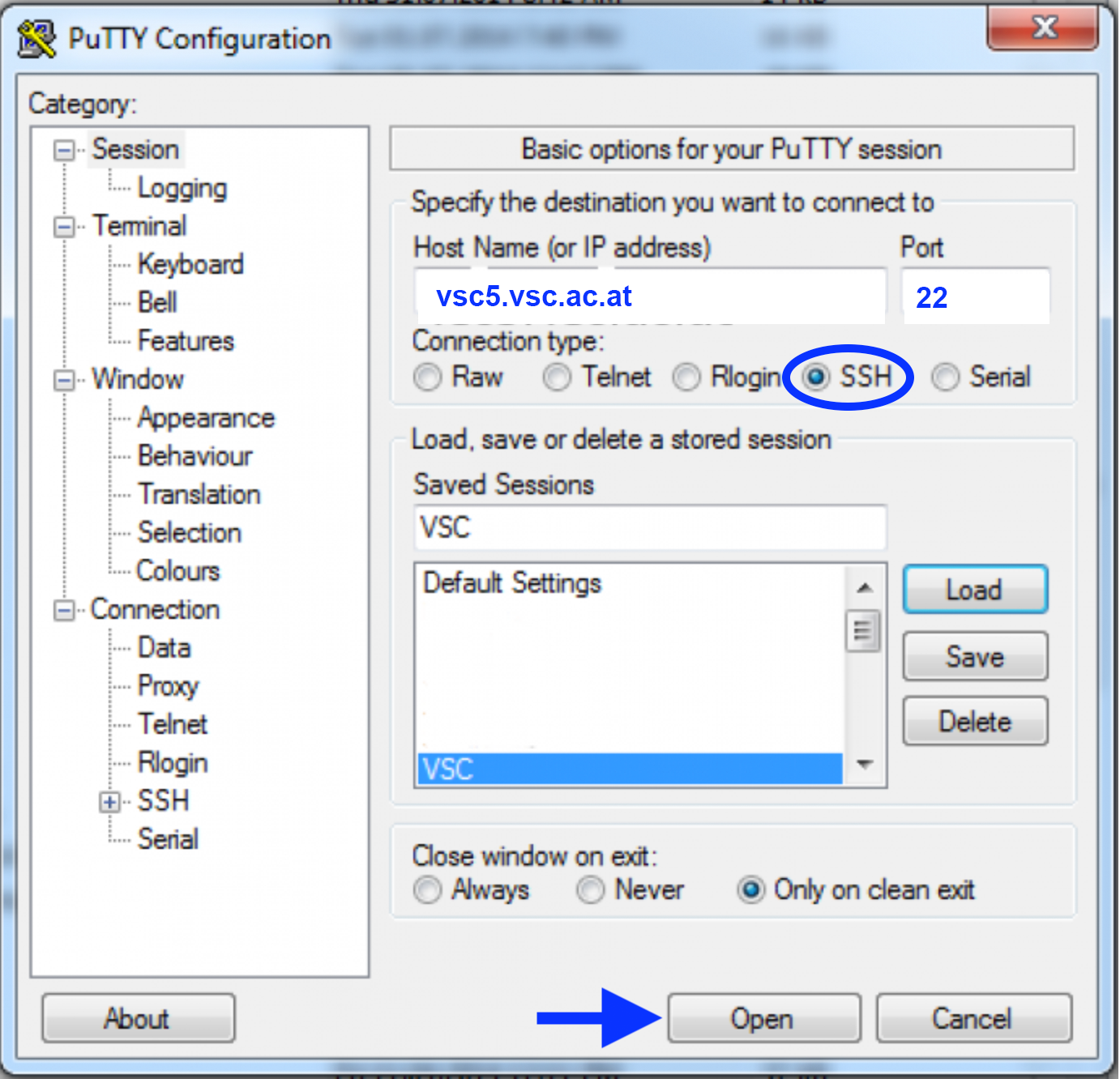
Alternatively, if you are on Windows you can install and use PuTTY (see screenshots).
SSH login – if you are in the IP range of an ASC partner university
(either physically OR via a jump host OR via VPN):
ssh trainee##@vsc5.vsc.ac.at
If you use Windows together with PuTTY please enter (see screenshot):
HostName: vsc5.vsc.ac.at
Port: 22
Connection type: SSH
Open --> in terminal - login as: trainee##
You'll be asked for your password:
Note, the password will be invisible when you type it.
After entering your (correct) password, you'll be asked for your OTP:
The OTP is a one-time password sent as an SMS to your mobile phone.
After entering your (correct) OTP you will see a welcome message and a
prompt and you can leave vsc5 by typing:
exit
SSH login – if you do not belong to an ASC partner university
(this option works for trainee users only):
ssh -t trainee##@vmos.vsc.ac.at vsc5
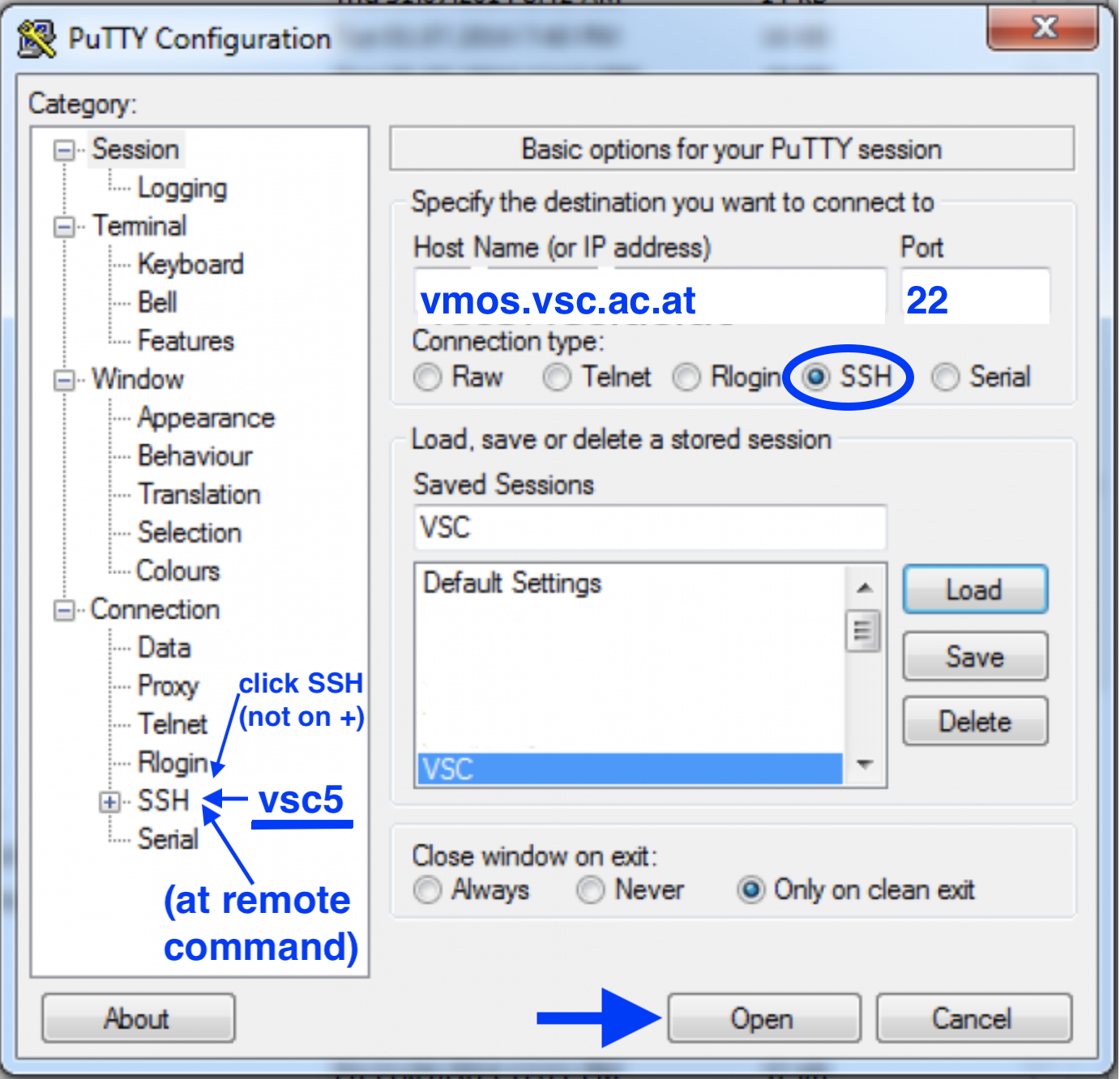
If you use Windows together with PuTTY please enter (see screenshot):
HostName: vmos.vsc.ac.at
Port: 22
Connection type: SSH
Left menu --> SSH --> Remote command: vsc5
Open --> in terminal - login as: trainee##
You'll be asked for your password twice (on vmos and on vsc5):
Note, the password will be invisible when you type it.
After entering your (correct) password twice, you'll be asked for your OTP:
The OTP is a one-time password sent as an SMS to your mobile phone.
After entering your (correct) OTP you will see a welcome message and a
prompt and you can leave vsc5 by typing:
exit
Login via your browser, if you can't use ssh (even though ssh would be highly recommended for the ASC-Linux course):
Login via the ASC JupyterHub with your username and password.
After entering your (correct) password, you'll be asked for your OTP:
The OTP is a one-time password sent as an SMS to your mobile phone.
Before the course:
Please "Logout" in the upper right corner of your browser window, do not hit the red "Start" button before the course starts.
During the course:
Feel free to hit the red "Start" button with the provided default setting.
Once your server is up and running, open a "Terminal" and type these two commands (copy with your mouse):
source .bashrc
export PS1='$ '
(the first command sets up a nice environment, the second shortens the prompt)
At the end of the course please shut down your server properly:
In the upper left corner use File --> Hub Control Panel and then click "Stop my Server".
After that please "Logout" in the upper right corner of your browser window.
With a successful first login (with any of the above methods) you are good to go and enjoy the online ASC-Linux course!
Please write an email to training@asc.ac.at if you are experiencing any problems with login or accessing vsc5 or if you need any further assistance (please also include your mobile-phone number with the international dial prefix as this is one of the most likely problems).