Austrian Scientific Computing (ASC) provides computing resources on vsc5 for the Public AI Hackathon.
During the hackathon a node reservation with NVIDIA A100 GPUs will by available from 4 May 2026, 12:00 to 5 May 2026, 16:00. Each team will have access to 3 nodes (6 A100 GPUs), that can be used interactively or via job submission.
Neither the login nodes nor the JupyterHub offer direct access to GPUs.
To access the reserved NVIDIA A100 GPUs use this option in job submissions or in node allocations for interactive access:
--reservation=hackathon
Code of conduct: All teams should limit themselves to using a maximum of 3 nodes (6 A100 GPUs) at the same time.
ASC user documentation: https://docs.asc.ac.at/
You might also want to check out our GPU usage slides.
Using GPUs in job submissions: https://docs.asc.ac.at/running_jobs/gpus.html
You can submit to a half-node (1 GPU) or to 1-3 node(s) (2 GPUs per node).
Don't forget to add the line: #SBATCH --reservation=hackathon to your job scripts!
This allows you to use one to several GPUs (several nodes) to, e.g., train an AI model faster.
Interactive jobs: https://docs.asc.ac.at/running_jobs/interactive_jobs.html
It is only possible to allocate full nodes, i.e., 1-3 node(s) (2 GPUs per node) for interactive work.
1 node (2 GPUs): salloc --reservation=hackathon -N 1 -p zen3_0512_a100x2 --qos=zen3_0512_a100x2 --gres=gpu:2
After that you'll use the command squeue --me to figure out which node has been assigned.
And ssh nxxx-xxx (with the info from the above command) to access the node.
Please don't forget to free your node allocation when you don't need it anymore (to figure our your job/allocation ID use: squeue --me and to cancel your jobs/allocations use: scancel JOB_ID).
JupyterHub: The JupyterHub serves the Public AI Hackathon in a mere terminal mode. Through the JupyterHub you will get access to 8 CPU cores, but no GPU. To access the reserved GPUs you still have to submit jobs or allocate interactve nodes from the reservation as described above. There is one additional thing that you need to do before submitting jobs or allocating resources:
From a terminal, before any job submission: source ~trainee00/MPI/tooling/unload_jupyter_env.sh
From within a NB cell job submission: !source ~trainee00/MPI/tooling/unload_jupyter_env.sh; sbatch ...
There are different options to access vsc5:
SSH login – restricted to the IP range of ASC partner universities
You have to be in the IP range of an ASC partner university: physically, via a jump host, or via VPN.
ssh trainee##@vsc5.vsc.ac.at
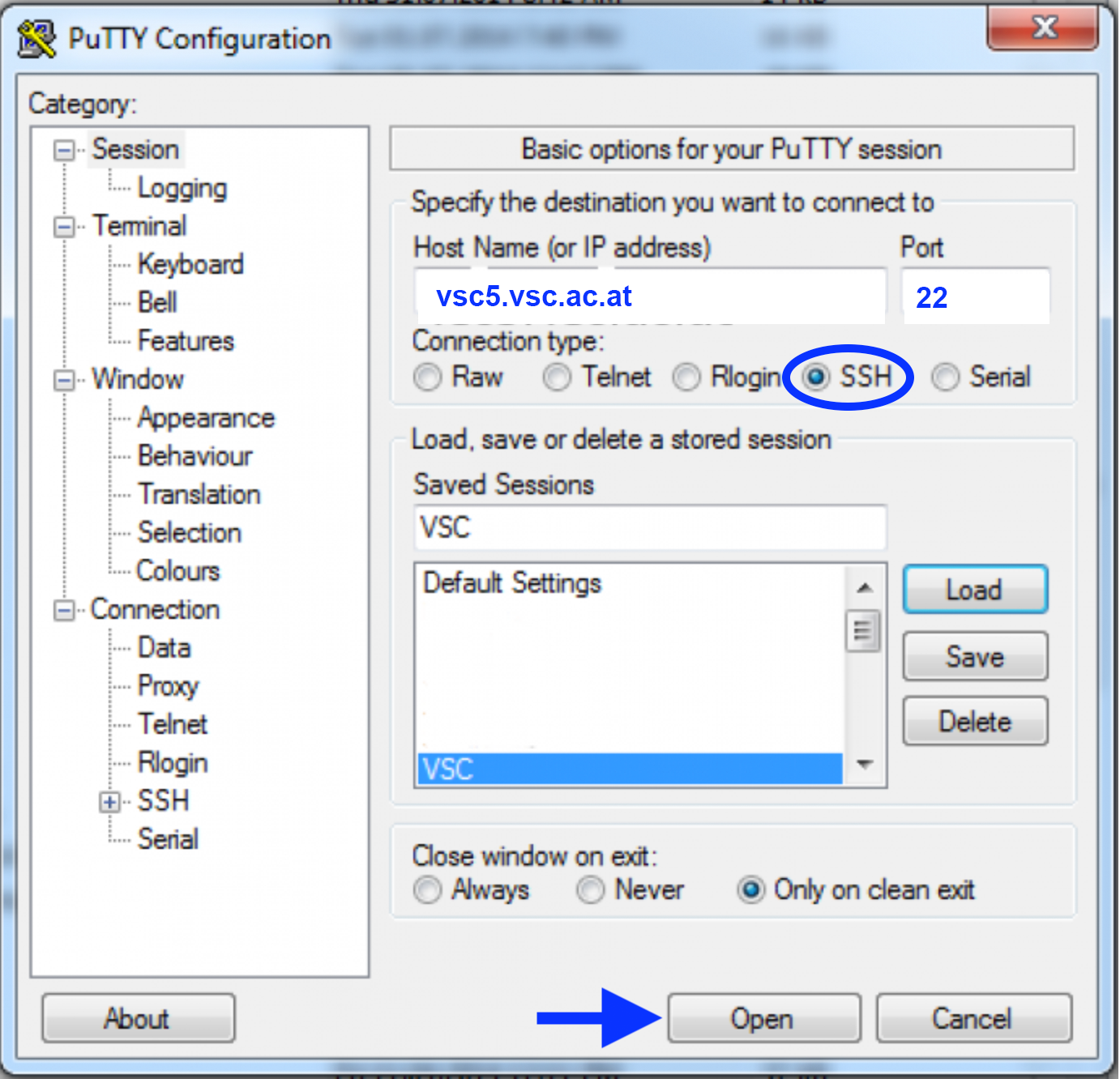
If you use Windows together with PuTTY please enter (see screenshot):
HostName: vsc5.vsc.ac.at
Port: 22
Connection type: SSH
Open --> in terminal - login as: trainee##
You'll be asked for your password:
Note, the password will be invisible when you type it.
After entering your (correct) password, you'll be asked for your OTP:
The OTP is a one-time password sent as an SMS to your mobile phone.
At the end you can leave vsc5 by typing:
exit
SSH login – from outside the ASC partner universities (without restrictions)
ssh -t trainee##@vmos.vsc.ac.at vsc5
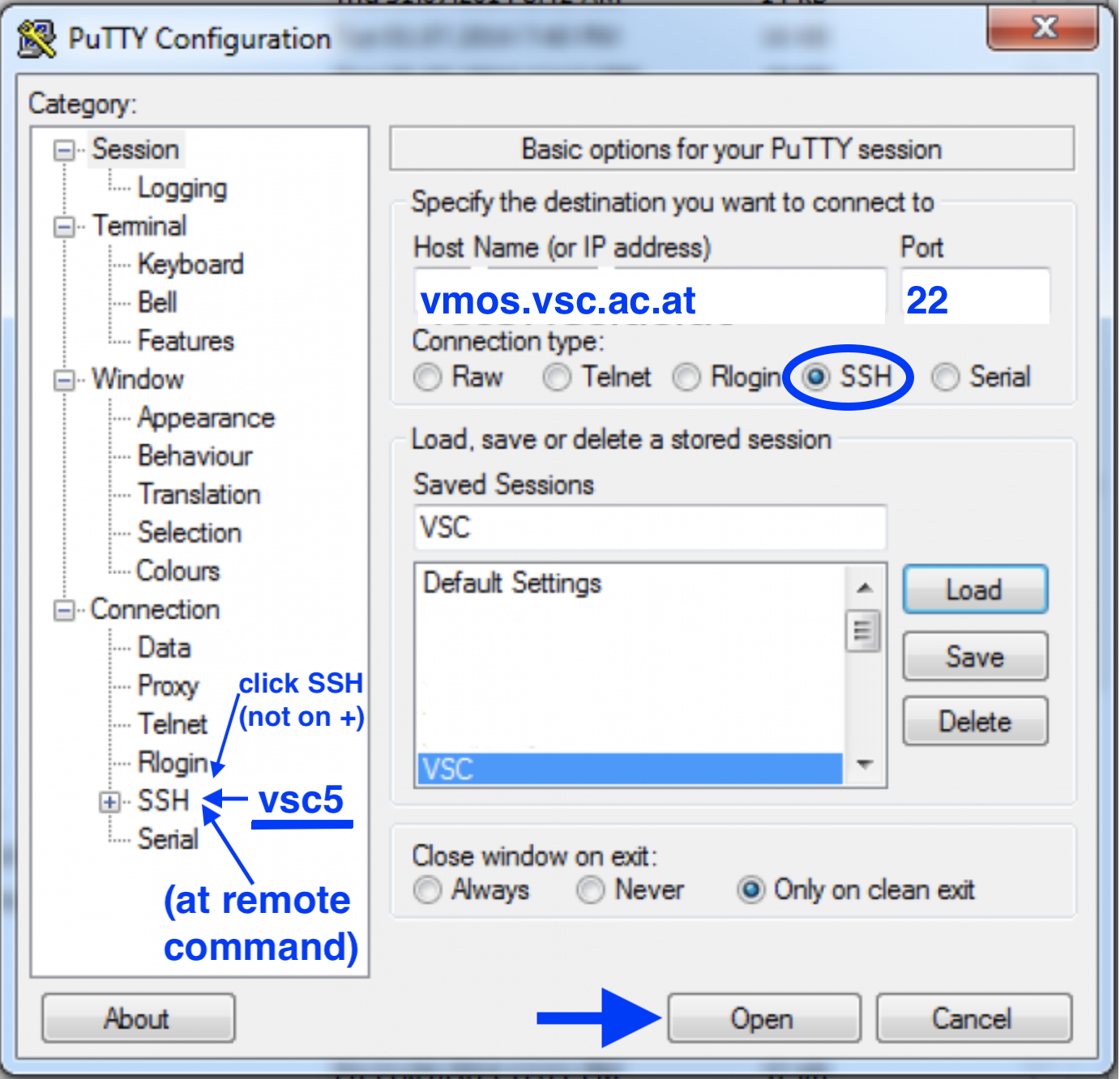
If you use Windows together with PuTTY please enter (see screenshot):
HostName: vmos.vsc.ac.at
Port: 22
Connection type: SSH
Left menu --> SSH --> Remote command: vsc5
Open --> in terminal - login as: trainee##
You'll be asked for your password twice (on vmos and on vsc5):
Note, the password will be invisible when you type it.
After entering your (correct) password twice, you'll be asked for your OTP:
The OTP is a one-time password sent as an SMS to your mobile phone.
At the end you can leave vsc5 by typing:
exit
JupyterHub – login via browser (without restrictions)
- Pre-assignment (checking if we have your correct mobile-phone number that is needed for login)
--> To be done after you get your ASC login details by email (a few days before the hackathon). - At the hackathon
--> At the hackathon (after 4 May 2026, 12:00 CEST), you may start a server. - At the end of the hackathon please shut down your server properly
--> To be done at the end of the hackathon.
- Please see the detailed instructions for each step below:
1. Pre-assignment (checking if we have your correct mobile-phone number that is needed for login):
Please try to login as soon as possible with your username and password (that will be sent to all participants by email a few days before the hackathon).
You will get an OTP (one-time password) as a text message on your mobile phone.
Should you not receive the OTP, please make sure that your phone number is correct and complete (with international dial prefix) and come back to us at training@asc.ac.at (and please again indicate your mobile-phone number with the international dial prefix as this is one of the most likely errors).
Login via browser at: https://jupyterhub.vsc.ac.at
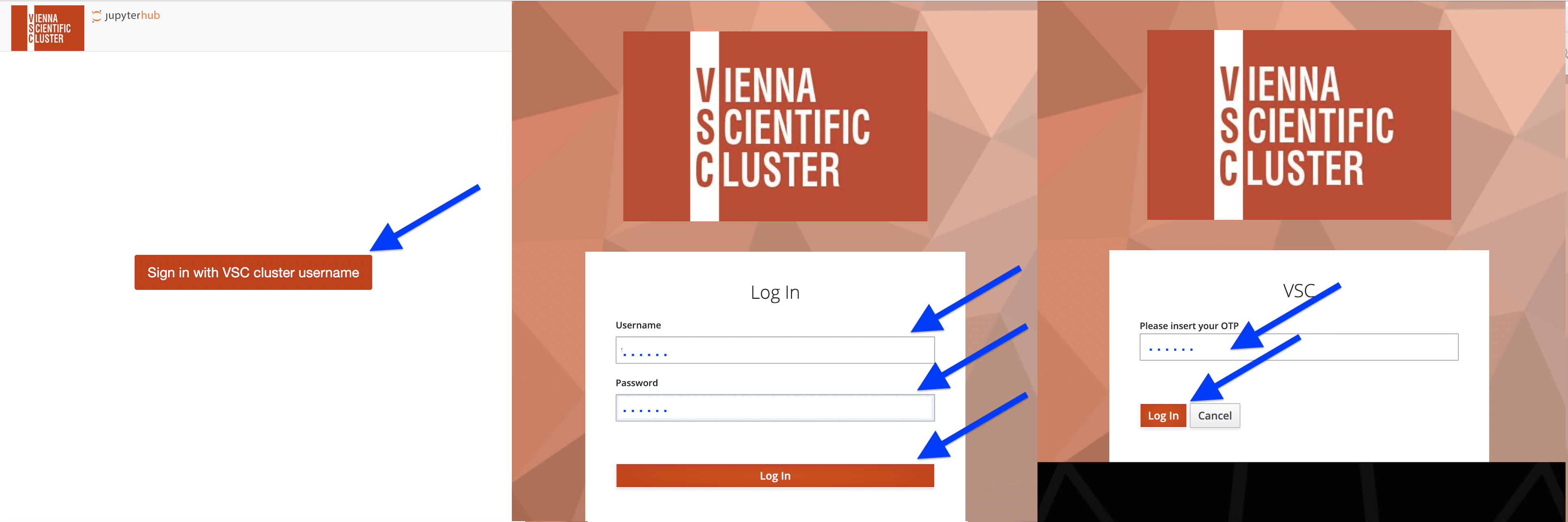
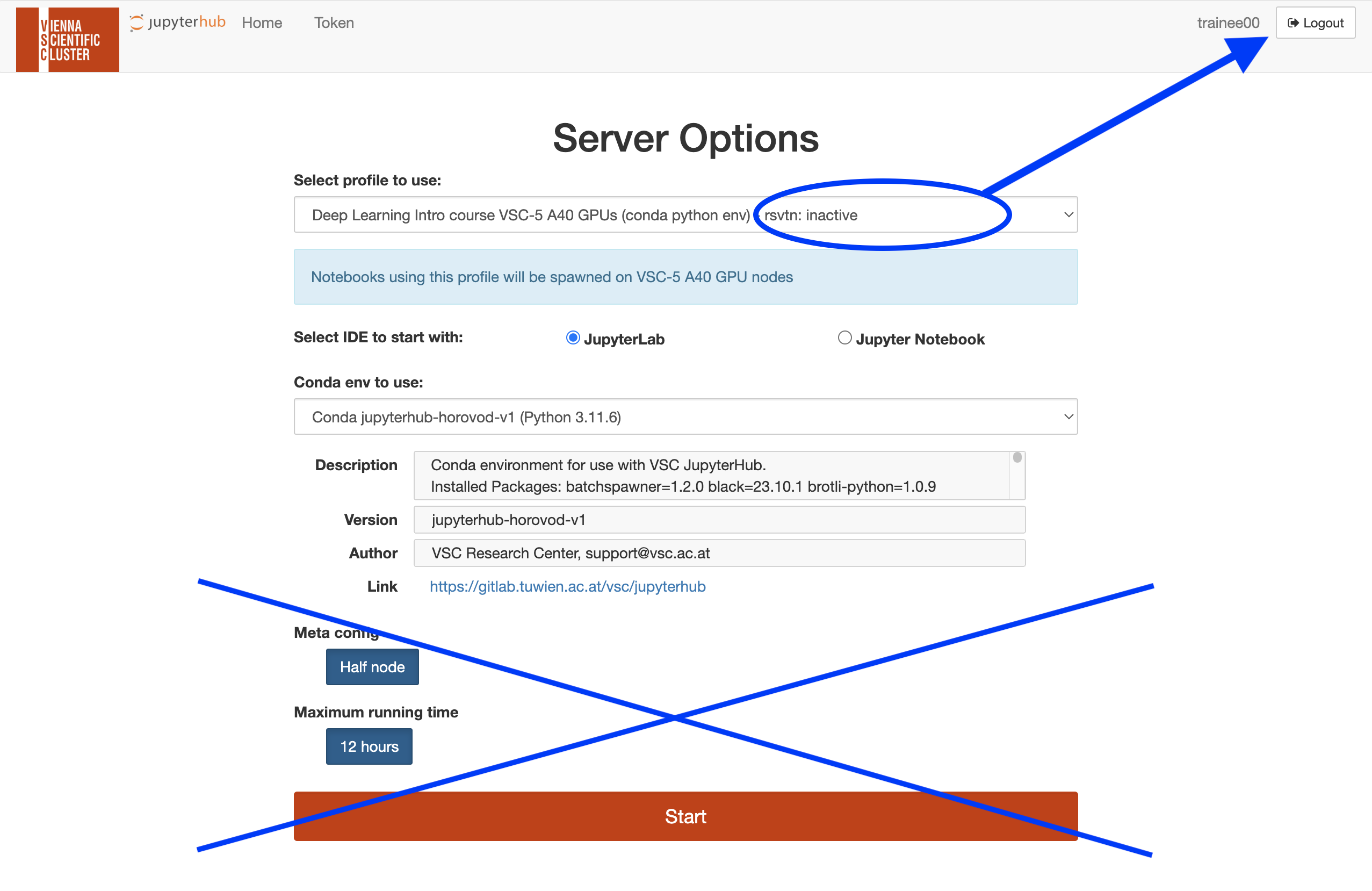
Once you see the screen with the "Server Options" you are done with the first pre-assignement and ready to go for the hackathon (please "Logout" in the upper right corner of your browser window, do NOT hit the red "Start" button before the hackathon starts)!
2. At the hackathon:
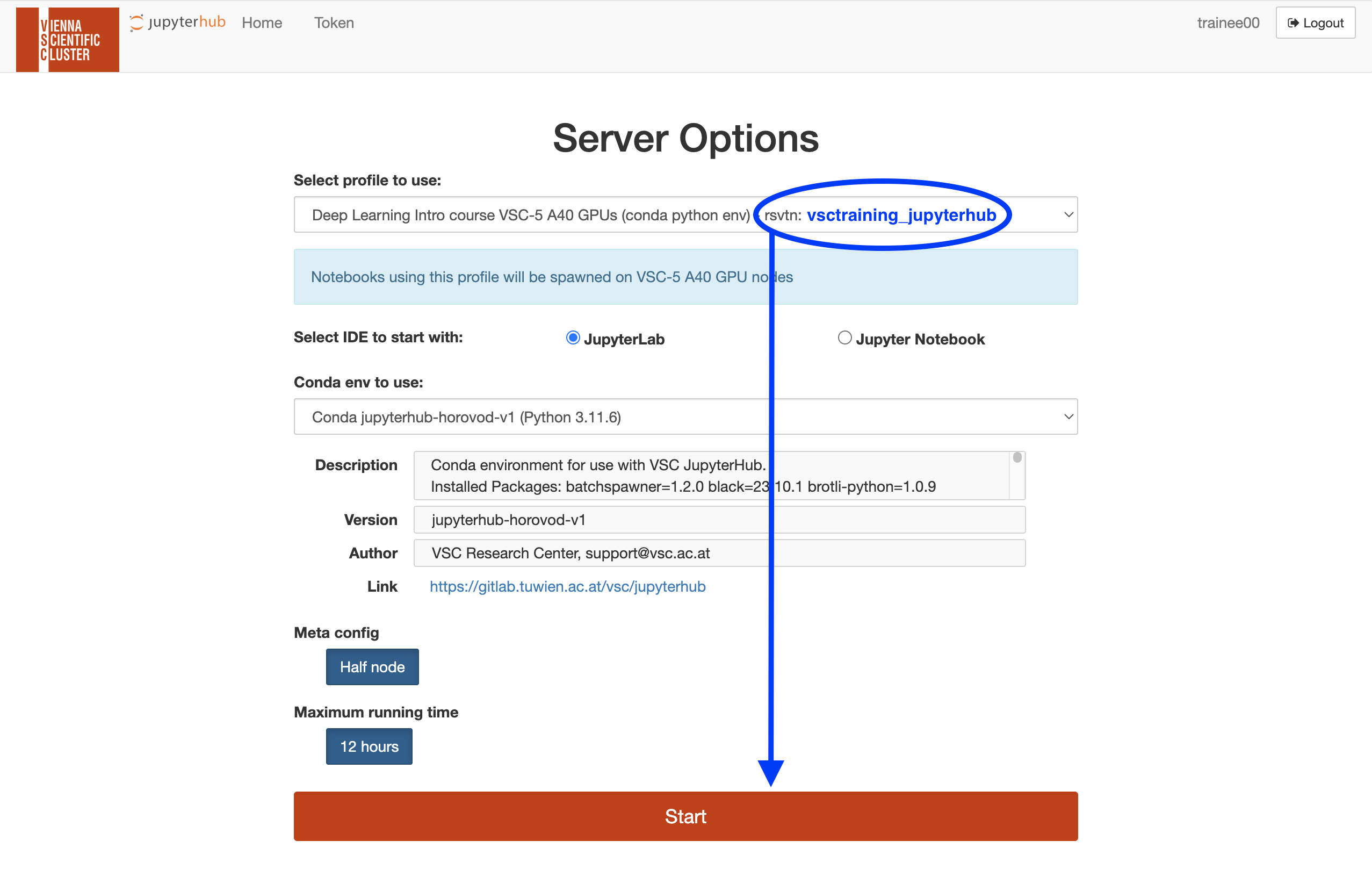
At the hackathon (after 4 May 2026, 12:00 CEST), please login to the ASC Jupyterhub (see above) but now please hit the red "Start" button on the bottom. If you run into a "Timeout", please be patient and hit the red "Start" button again, you might have to repeat this a couple of times. Sometimes we see some congestion with starting up if a lot of participants try to do that at the same time.
Once your Server is up and running, you'll see a page like this. You can see your folders and files in the left menu. If you click on a file it will open in an editor. In the main window you see the Launcher to open a new Notebook or a Terminal. 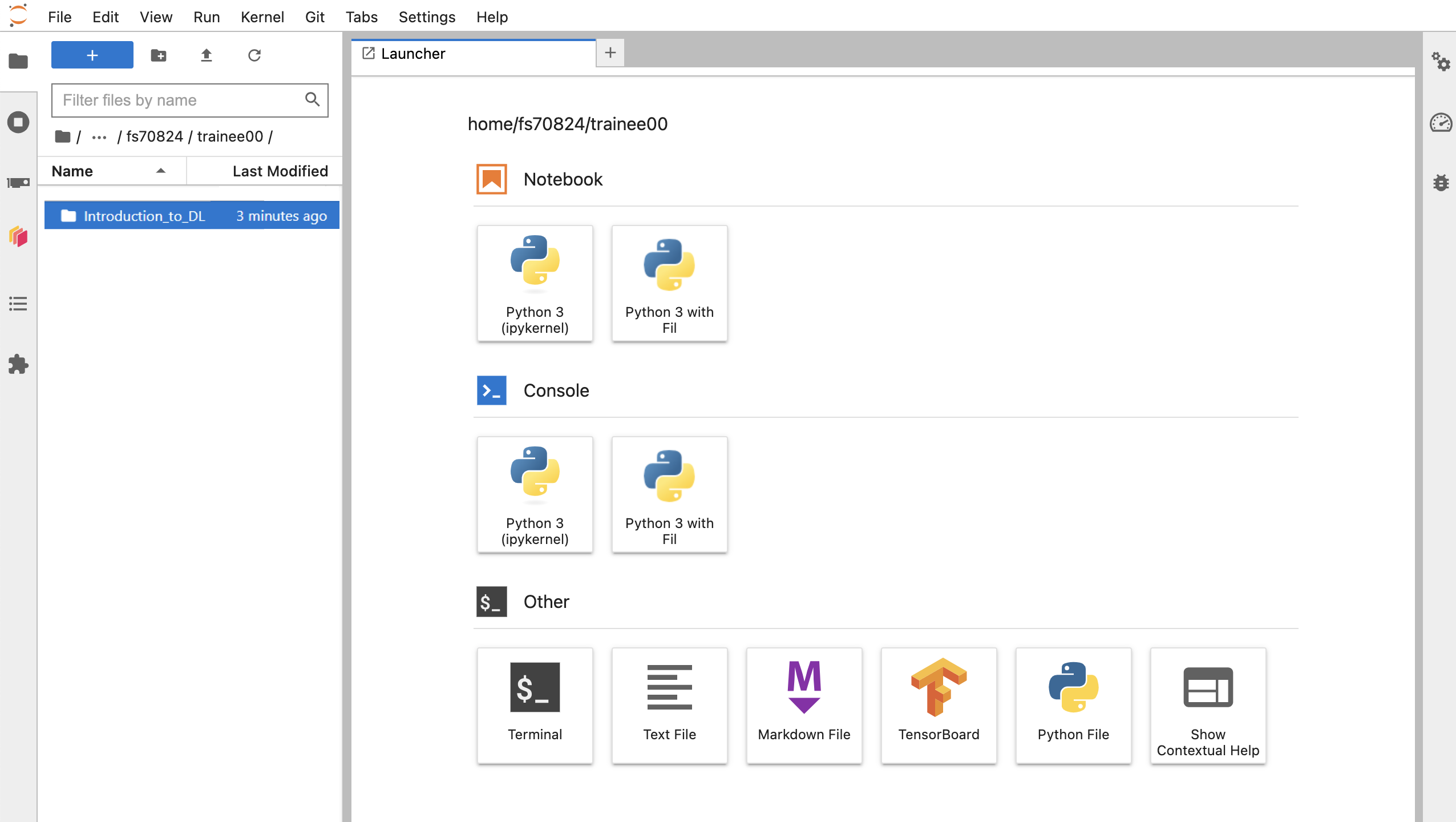
3. At the end of the hackathon please shut down your server properly:
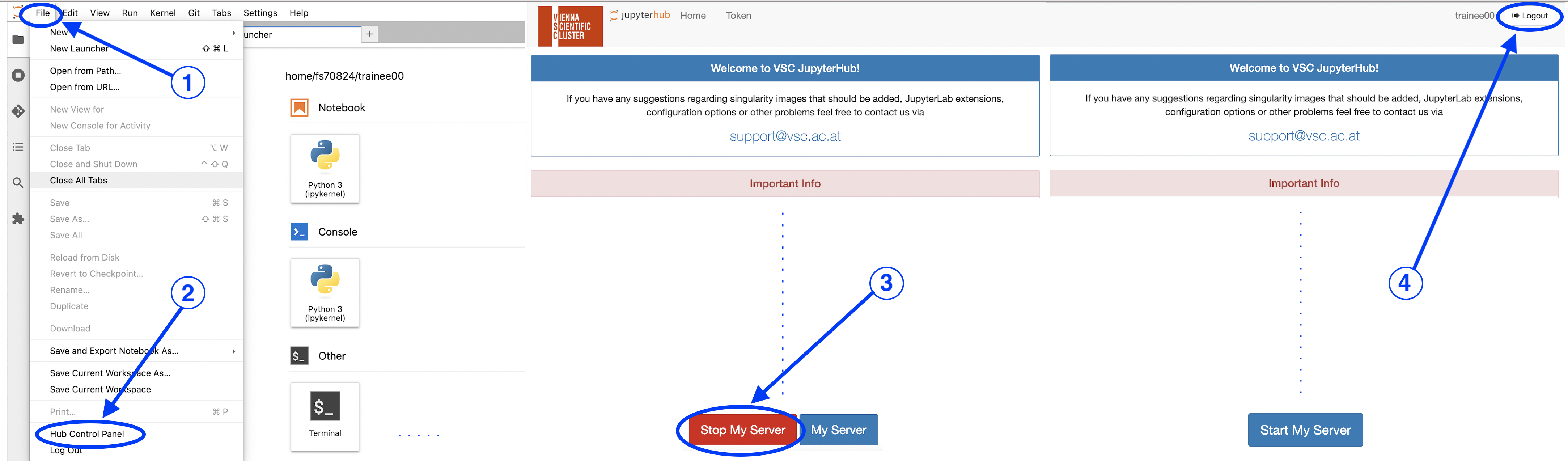
In the upper left corner of a Jupyterhub window click on "File" and in the drop-down click on "Hub Control Panel".
On the next page click the "Stop my Server" button and after that "Logout" in the upper right corner of your browser window.
Close all open Jupyterhub tabs.